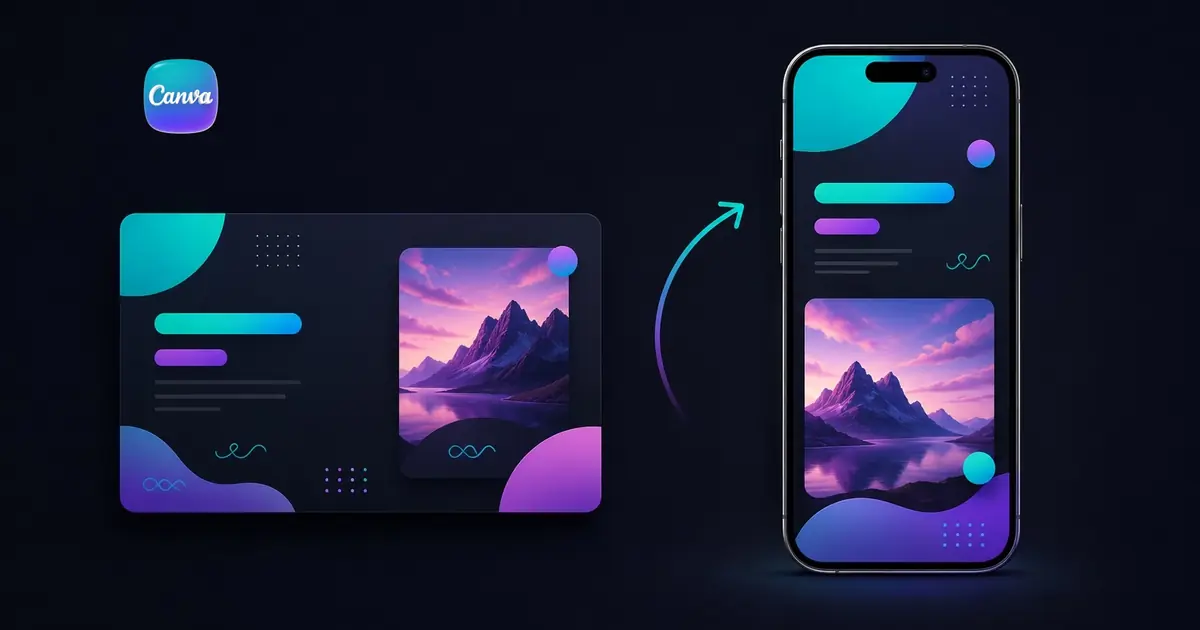
Quick answer: The cleanest way is to start vertical: create a new design and choose a portrait size such as Mobile (1080 × 1920), or set a Custom size that's taller than it is wide. To convert an existing horizontal Canva presentation, use Resize (a Canva Pro feature) from the top toolbar, or copy your content into a new portrait design if you're on the free plan. Then design into the tall frame and share or export.
Canva is the most flexible of the desktop tools for picking a vertical shape, but it has its own catch around resizing and what "presentation" actually means. Here are the steps, the limitations, and the faster way if your slides are meant for a phone.
Can you make a Canva presentation vertical?
Yes. Canva presentations default to 1920 × 1080 (16:9), but Canva supports portrait sizes for almost every design type, so a vertical presentation is just a matter of choosing the right dimensions. The one friction point: you can't freely change the size of an existing free design. Resizing is a Pro feature, so free users start a new portrait design and bring their content across.
How to make a vertical presentation in Canva: step by step
Option A: start vertical (works on free and Pro):
- From the Canva home screen, click Create a design → Custom size.
- Enter a portrait size:
1080 × 1920px for true 9:16, or any size taller than it is wide. - Pick a vertical template or start blank, then design into the tall frame.
Option B: resize an existing design (Canva Pro):
- Open your existing presentation.
- Click Resize (or Resize & Magic Switch) in the top toolbar.
- Enter a custom portrait size or pick a vertical preset, then choose Copy & resize to keep the original intact.
- Clean up the layout, since elements reflow but rarely land perfectly.
Free-plan workaround (no Resize):
- Create a new portrait design at
1080 × 1920. - Copy your elements from the old design and paste them in.
- Reposition to fit the taller frame.
The catch: it's still a design file, not a mobile format
Canva makes the vertical shape easy. The limits show up around how that vertical design behaves:
- Resizing isn't free, and isn't perfect. Magic Resize lives behind Canva Pro, and even then your text, images, and elements reflow approximately. You'll tidy up most slides by hand.
- It's all-or-nothing per design. One size per design file. You can't mix a vertical title slide and a horizontal chart slide in the same presentation.
- "Presentation" still means click-through. Canva's presentation mode is built to be presented on a wide screen. A vertical Canva presentation is really a stack of portrait images you advance through, not a scrolling mobile experience.
- Sharing is a file or a static link. You can share or export, but you don't get a native, full-screen mobile player with scroll, taps, and built-in analytics.
So Canva will happily give you a portrait design. But if the goal is something people watch and scroll on their phones, you're still using a graphic-design tool to imitate a format it wasn't built for.
The easier way: build vertical-first with Flow2
Flow2 is built the other way around. It's mobile-first and vertical by default, so there's no resize step and nothing to clean up afterward:
- Vertical from the first screen: no resizing, no squished layouts.
- Made for phones: your audience opens a link and it just works, full-screen, the way they already scroll everything else.
- Scroll and tap, not click-through: vertical scrollytelling, interactive menus, and rich media (video, etc.) built in.
- Share as a link: send a
flow2.co/m/…link or QR code; no file, no app, no "can you see my screen?" - Built-in analytics: see what people actually viewed.
If you're designing a vertical graphic or a one-off portrait deck, Canva is a great fit. If you're building a presentation because your audience lives on their phone, that's exactly what Flow2 is for.
Already have a deck? Skip the rebuild
You don't have to rebuild your design in a portrait frame by hand. In Canva, use Share → Download and export as PDF or PowerPoint (.pptx), then upload that file to Flow2 and it gets rebuilt as a vertical, mobile-ready flow you can share as a link. Flow2 reads your content and lays it out for phones, so you skip the Magic Resize cleanup entirely. It's free to try, with no install.
FAQ
Can you make just one slide vertical in a Canva presentation? No. A Canva design uses a single size, so every page shares the same orientation. For a mix of shapes, use separate designs or a tool with per-screen layouts.
What size should a vertical Canva presentation be? For a 9:16 mobile shape, use 1080 × 1920 pixels. That's the native resolution for phones, Stories, and Reels, so exports stay crisp.
Do you need Canva Pro to make a vertical presentation? No. You can start a new design at a portrait Custom size on the free plan. You only need Pro to resize an existing design with Magic Resize. Free users copy their content into a new portrait design instead.
How do I change an existing horizontal Canva design to vertical? With Canva Pro, use Resize (Resize & Magic Switch) and choose Copy & resize. On the free plan, create a new portrait design and paste your content in, then reposition to fit.
Can I present a vertical Canva presentation on a normal screen? You can, but a tall design on a wide monitor leaves big empty bars on either side. Vertical presentations look best on vertical screens (i.e. phones), which is why a mobile-first tool is a better fit for that use case.
Related: How to Make Vertical Slides (the complete guide) · How to Make Google Slides Vertical · How to Make PowerPoint Slides Vertical