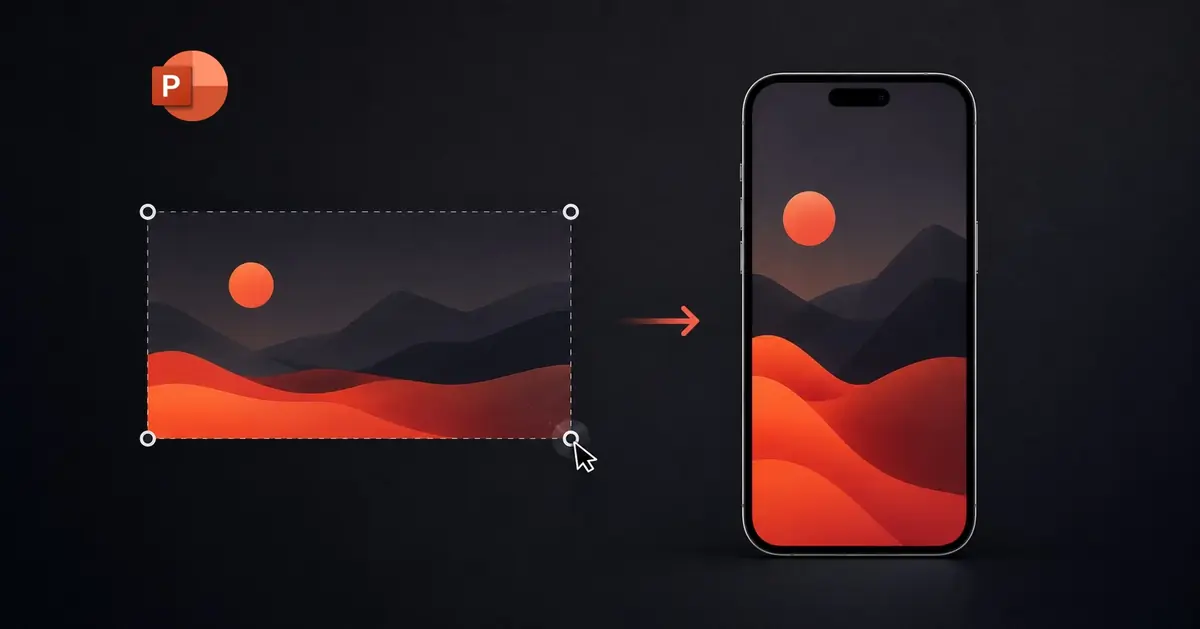
Quick answer: Open the Design tab, click Slide Size → Custom Slide Size, then under Orientation choose Portrait. For a 9:16 mobile shape, set the width to 7.5" and the height to 13.33" (or 1080 × 1920 if you switch to pixels). When PowerPoint asks how to handle your content, pick Maximize to fill the slide or Ensure Fit to keep everything on-canvas. Click OK and your deck is vertical.
Of the three big slide tools, PowerPoint handles vertical the most gracefully. It's the only one with a true one-click orientation switch. Below are the exact steps, plus the place it still falls short and the faster way if your slides are headed for a phone.
Can you make PowerPoint slides vertical?
Yes, and more directly than in Google Slides. PowerPoint has a built-in Portrait orientation toggle in the Slide Size dialog, so you don't have to guess at custom dimensions. The orientation applies to the whole presentation (you can't mix portrait and landscape slides in one file), so it's best to set it before you build, though PowerPoint will try to rescale existing content if you switch partway through.
How to make PowerPoint slides vertical: step by step
- Open your presentation and click the Design tab in the ribbon.
- On the far right, click Slide Size, then Custom Slide Size.
- In the dialog, find the Orientation section and select Portrait for the slides.
- Set the exact dimensions if you need a specific ratio:
- 9:16 mobile shape:
7.5"wide ×13.33"tall - Standard portrait:
7.5"wide ×10"tall - Prefer pixels? Many versions let you type
1080px × 1920pxfor true 9:16.
- 9:16 mobile shape:
- Click OK.
- If your deck already has content, PowerPoint asks how to scale it. Choose Maximize to fill the taller slide (content may crop) or Ensure Fit to shrink everything so nothing falls off the edge.
That's it. On a blank deck this is painless. On an existing one, expect to nudge elements back into place after the rescale.
Setting the size in pixels (for social / mobile)
If your slides are headed for a phone screen, Stories, or Reels-style export, work in the equivalent of 1080 × 1920. That's the native 9:16 resolution for most phones and keeps exported images and video crisp.
The catch: portrait is an export size, not a format
PowerPoint's Portrait toggle is genuinely good, so the limitation isn't the switch itself. It's what you get afterward:
- Rescaling existing decks still needs cleanup. Maximize and Ensure Fit move and resize everything at once, so text boxes, images, and charts rarely land where you want. You'll reposition by hand on most slides.
- It's all-or-nothing. One orientation per presentation. You can't keep a landscape chart slide alongside a portrait title slide.
- It's still built for a projector. Even in portrait, PowerPoint is designed to be presented on a wide screen and edited on a desktop. Open a vertical .pptx on a phone and you get pinch-zoom and awkward scaling, not a native mobile experience.
- No real interactivity. Vertical content today is scrollable, tappable, and media-rich. PowerPoint gives you static pages you click through. The shape changes, the format doesn't.
So PowerPoint will hand you a clean portrait rectangle. But if the whole point is something people watch on their phones, you're still styling a desktop tool to imitate a format it wasn't built for.
The easier way: build vertical-first with Flow2
Flow2 is built the other way around. It's mobile-first and vertical by default, so there's no slide-size dialog and nothing to rescale:
- Vertical from the first screen: no resizing, no squished layouts.
- Made for phones: your audience opens a link and it just works, full-screen, the way they already scroll everything else.
- Scroll and tap, not click-through: vertical scrollytelling, interactive menus, and rich media (video, etc.) built in.
- Share as a link: send a
flow2.co/m/…link or QR code; no file, no app, no "can you see my screen?" - Built-in analytics: see what people actually viewed.
If you're making a vertical deck for print or a kiosk, PowerPoint's Portrait mode is fine. If you're making it because your audience lives on their phone, that's exactly what Flow2 is for.
Already have a deck? Skip the rebuild
You don't have to redo your slides by hand. Upload your existing PowerPoint to Flow2 and it gets rebuilt as a vertical, mobile-ready flow you can share as a link. Flow2 reads the content of your .pptx and lays it out vertically for phones, so you skip the portrait-resize cleanup entirely. It's free to try, with no install and nothing to export.
FAQ
Can you make just one slide vertical in PowerPoint? No. Orientation applies to the entire presentation, so every slide is portrait or every slide is landscape. For a single vertical slide among horizontal ones, build it in a separate file or use a tool that supports per-screen layouts.
What size should a vertical PowerPoint slide be? For a 9:16 mobile shape use 7.5 × 13.33 inches (or 1080 × 1920 pixels). For a gentler portrait, 7.5 × 10 inches works well.
How do I change a horizontal PowerPoint deck to vertical? Use Design → Slide Size → Custom Slide Size → Portrait, then choose Maximize or Ensure Fit when prompted. Existing elements get rescaled but not perfectly repositioned, so it's far easier to set orientation before you start designing.
Does PowerPoint have a portrait option? Yes. Unlike Google Slides, PowerPoint has a real Portrait/Landscape orientation toggle in the Slide Size dialog, which is the cleanest portrait switch among the desktop slide tools.
Can I present a vertical PowerPoint on a normal screen? You can, but a tall slide on a wide monitor leaves big empty bars on either side. Vertical decks are best viewed on vertical screens (i.e. phones), which is why a mobile-first tool is a better fit for that use case.
Related: How to Make Vertical Slides (the complete guide) · How to Make Google Slides Vertical · How to Make a Vertical Presentation in Canva